
Try Our APIs
Following are some examples of using the Try It interface in the developer portal.
BEARER TOKEN LIFESPAN
The lifespan of a Bearer token is one hour (3600 seconds) for both sandbox and production environments.
Generate a Bearer token
In interactive Try It! interface
Use the API reference's Try It interface as shown below by using our sandbox predefined values to familiarize yourself with our APIs.
- For example, to generate an API Bearer token in the developer portal, go to API Tools.
- Click
/apip/auth/v2/token. - Use your sandbox credentials provided in the
client Idandclient secretfields and enterclient_credentialsin the grant_type field and click Try It.
curl --request POST \
     --url https://sandbox-apigw.optum.com/apip/auth/v2/token \
     --header 'accept: */*' \
     --header 'content-type: application/json' \
     --data '
{
  "client_id": "your client ID",
  "client_secret": "your secret",
  "grant_type": "client_credentials"
}'
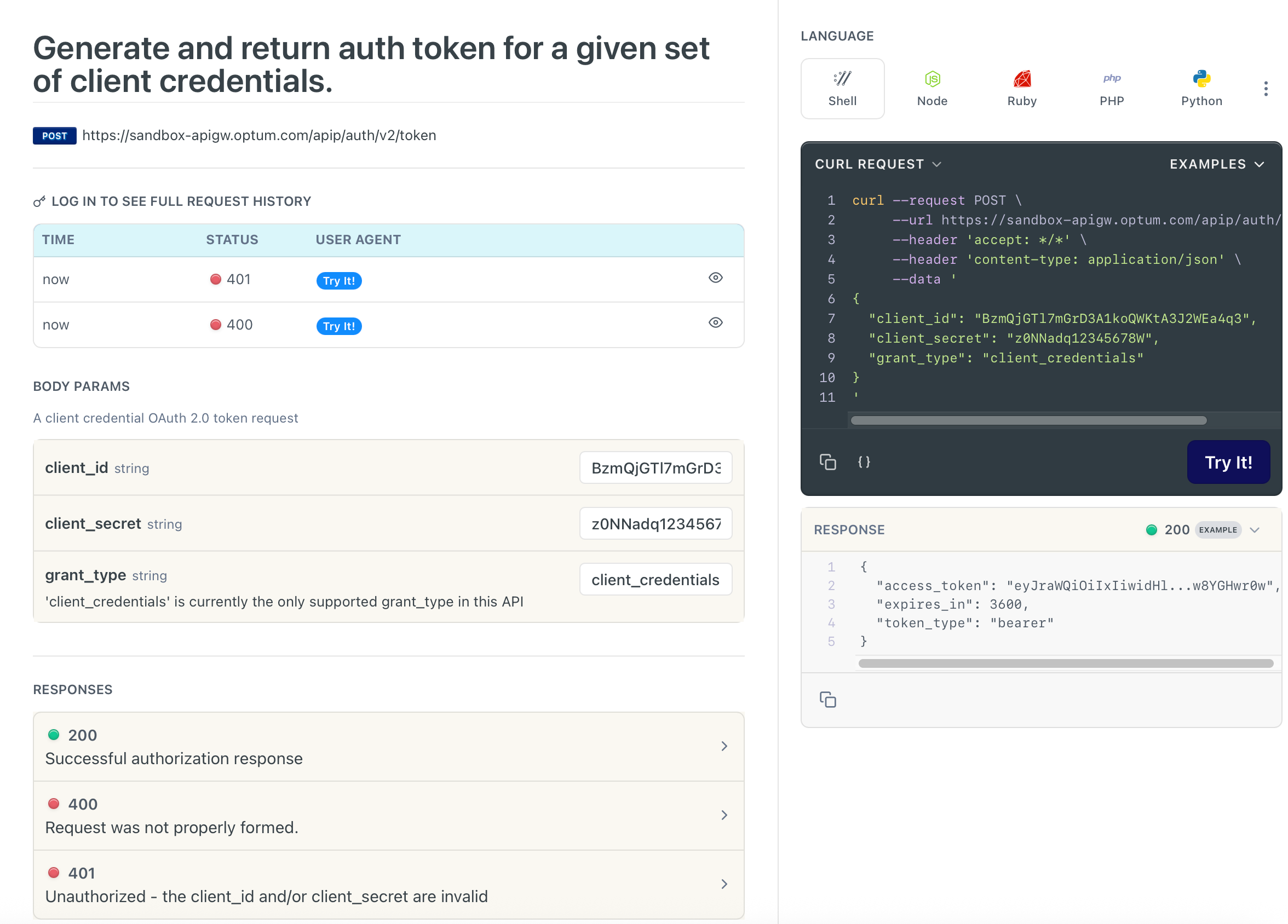
Generate Bearer Token Try It Feature Example
In your development platform
- Download and import our OpenAPI Spec into your platform.
- Under the Prior Authorization V1 folder, click the
Generate JWT token with payload - Medical Networkendpoint. - Click the
Bodytab and enter your specific API credentials provided by Optum.
client_id: your client_idclient_secret: your client_secretgrant_type: client_credentials
- Run the request to generate the Bearer token.
API Healthcheck
See API Health Check example.
Run the Eligibility check endpoint in Try It! interface
- Generate a Bearer token using your
client Id,client secret, andclient_credentialsin the developer portal see generating a Bearer token. - Click Check Eligibility.
- Scroll down to the end of the page and enter the generated Bearer token without the double quotes in the Authorization field.
- Enter in the
controlNumber,serviceId, and all the required fields in the Body Params. Also see, sandbox predefined values.
IMPORTANT
Please note that unlike the
Check Eligibility X12, the JSON request requires you to provide all the required field values. Please note that these required values are GREYED out, which are pre-populated example values and can be selected to view their respective canned response. To view the required fields, expand the + symbol shown in the following figure (see Eligibility and Claim Status sandbox API values and test responses examples). For more information, please refer to the JSON-to-EDI API contents section.
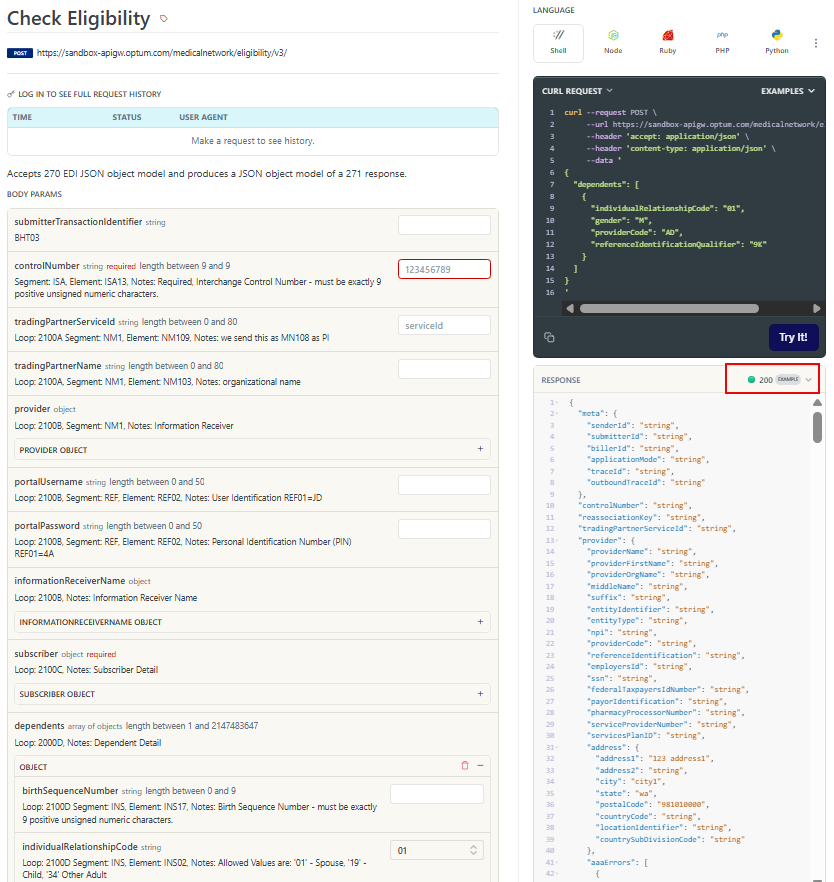
Eligibility V3 API Response Example
IMPORTANT
For sandbox usage, all fields must have the correct predefined values to obtain a successful response example. Inventing new PMI values or using real-world PMI values will result in errors. Please provide all of the values, such as
tradingPartnerServiceId,controlNumber,subscriber, and so on marked as required (R) (see for example, Request and Response and Eligibility JSON-to-EDI API Contents in your API requests.
For information about HTTP response codes, see.
Related Topics
Updated about 1 month ago