
Readme Prior Auth Sandbox
You can familiarize yourself with our APIs before integrating our APIs for real-time API testing in your production environment by using the following resources:
- Your development platform/console — download and import our OpenAPI Spec provided in the Overview section >> Download OpenAPI Spec.
- Our developer portal's Try It! interface — use our interactive Try It interface with pre-populated values to view canned response.
To view a variety of responses, you can edit the request body by using our predefined values (see examples in Inquiry Sandbox Test Responses and Submission Sandbox Test Responses).
Generate a Bearer token
NOTE
We strongly recommend that you carefully guard your API access credentials. Avoid sharing them with others.
In Try It interface
- Click Get Token.
- Enter the following company-specific secure credentials provided.
client_id: your client_idclient_secret: your client_secretgrant_type: client_credentials
- Click Try It!.
Your Bearer token shows in the RESPONSE box below the Try It! box.
Copy the Bearer token into a notepad for reusing within the Bearer token expiration period (3600 seconds lifespan).
In your own platform
- Download and import our OpenAPI Spec into your platform.
- Under the Prior Authorization V1 folder, click the
Get Tokenendpoint. - Click the
Bodytab and enter your specific API credentials provided by Optum.
client_id: your client_idclient_secret: your client_secretgrant_type: client_credentials
- Run the request to generate the Bearer token.
BEARER TOKEN LIFESPAN
The lifespan of a Bearer token is one hour (3600 seconds) for both sandbox and production environments.
We recommend automating transactions to use the tokens generated over the token lifespan. Obtaining tokens for each transaction is less efficient and does not improve the security criteria for any transactions.
API testing
To test our APIs in the sandbox or production environment, use the following predefined values.
Predefined values for API testing
| Predefined Value | Description |
|---|---|
INQDEMO | umClearingHouseId |
payerId | Code to identify the payer (insurance company) provided by Optum when they sign a contract |
memberId | Member ID from the insurance holder's insurance cardmemberId needs to be one of these predefined values to try our APIs: TST1, TST2, TST3, TST4, TST5, TST6, TST7, TST8, TST9, TST10, or TST11. ✍️These member IDs work in both sandbox and production environments. |
senderId | Code used to identify who is sending the request (hospital making the request) provided by Optum when they sign a contract |
You can edit the payerId and memberId in the request body to view a variety of canned response examples.
In the JSON requests, apart from the senderId, payerId, umClearingHouseId, submitterTransactionIdentifier, and payerNameprovide all the required field values based on the required response. See example.
Canned responses
Please find more canned response examples here: Inquiry Sandbox Test Responses and Submission Sandbox Test Responses.
The responses for umClearingHouseId and payerId are based on the memberId sent in the request.
Examples
API health check
Our /healthcheck endpoint verifies that the connection to the Prior Auth service was established and the API is operational. It is a ping for the API entry points to ensure that the entry points are accessible; this is the first thing you can do if the API request is not responding.
Run API health check in your development platform/console
- Download our OpenAPI Spec and import it in your platform.
- Inside the required product API collection folder, click the
Get Access Tokenendpoint. - Click the
Bodytab and enter your specific API credentials provided.
client_id: your client_idclient_secret: your client_secretgrant_type: client_credentials
- Run the request to generate a Bearer token.
- Now, click the
/healthcheckendpoint and send the request.
If the request was successful, the 200 Success response shows as "status: ok". If the request failed, a 500 Internal Server Error shows. For information about HTTP response status, see.
Run API health check in the Try It! interactive interface
- In the developer portal API Reference >> expand the required Prior Authorization API collection, click Authentication >> Get Token endpoint to generate a Bearer Token.
- Enter your unique API credentials:
client_id: your client_idclient_secret: your client_secretgrant_type: client_credentials
- Click Try It!.
Your Bearer token shows in the RESPONSE box below the Try It! box.
Copy the Bearer token into a notepad for reusing within the Bearer token lifespan of 3600 seconds.
- Now click the
Service heartbeatendpoint. - Paste the Bearer token generated in step 3 above, in the CREDENTIALS box in the top far-right of the page (highlighted in red in the following figure).
- Click Try It! (highlighted in green in the following figure) to view the operational status of the API.
If the request was successful, the 200 success response shows as OK in the RESPONSE box (highlighted in blue in the following figure). If the request failed, the 500 Internal Server Error shows. For information about HTTP response status, see.
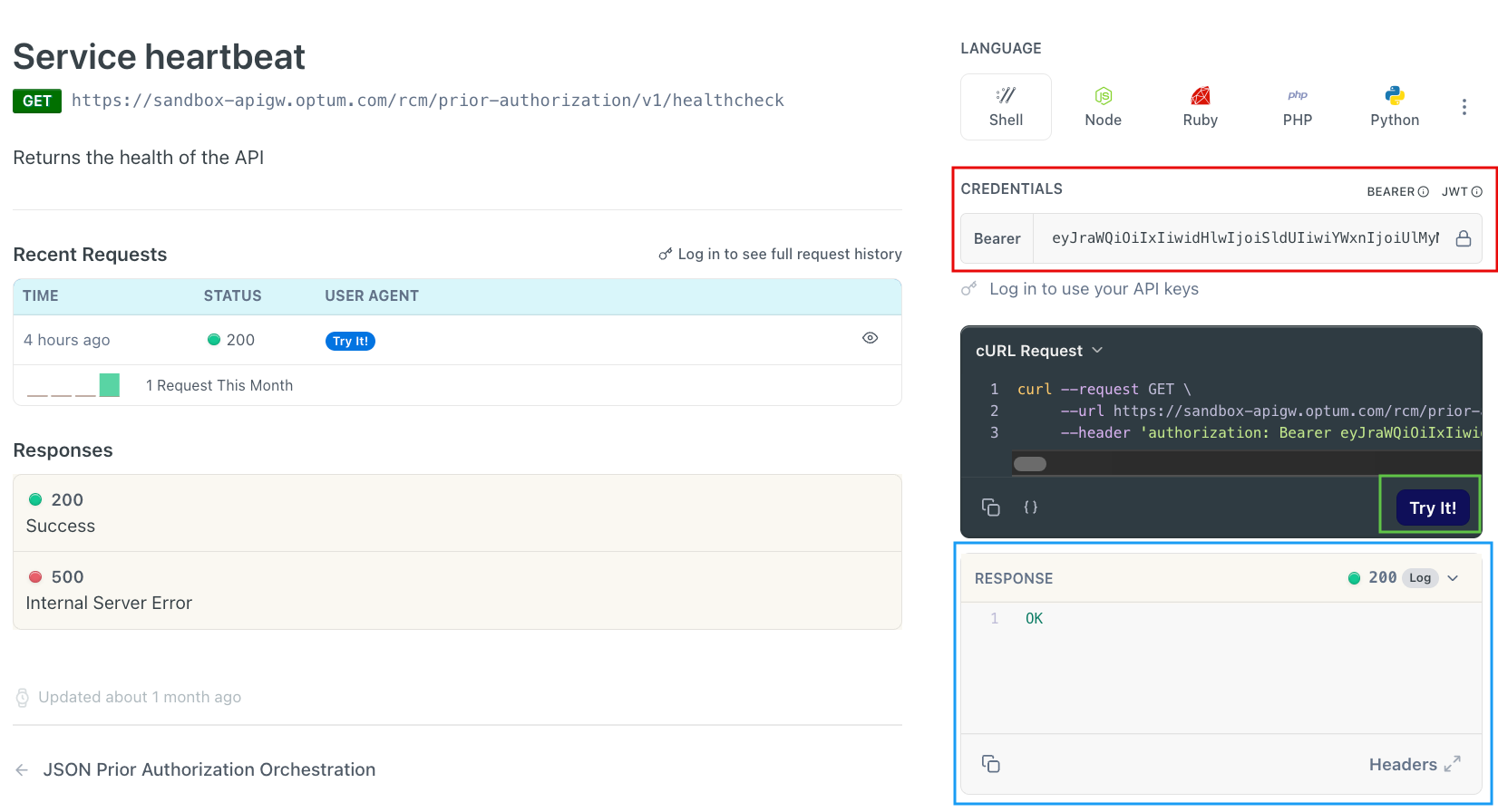
Healthcheck API Example
X12 Prior Authorization
- Here is an X12
/inquiryexample, click 278x215 Prior Authorization Inquiry endpoint. - Paste the Bearer token that you generated in the generate a Bearer token section, in the CREDENTIALS box highlighted in red in the following figure.
- Enter your x12 request body as shown in the following example in the x12 box highlighted in green in the following figure.
{
    "x12": "ISA*00*          *00*          *ZZ*943207296      *ZZ*INQDEMO        *230810*1021*^*00501*916040697*0*P*:~GS*HI*943207296*INQDEMO*20230810*102137*3294199*X*005010X215~ST*278*0001*005010X215~BHT*0007*28*1402448037*20230810*102137~HL*1**20*1~NM1*PR*2*INQDEMO*****PI*INQDEMO~HL*2*1*21*1~NM1*1P*2*Demo Hospital*****XX*1234567890~REF*EI*123456789~N4*Nashville*TN*12345~PER*IC**TE*1112223333*FX*2223334444~HL*3*2*22*1~NM1*IL*1*DOE*JOE****MI*TST2~REF*6P*00000000~DMG*D8*19010101~HL*4*3*EV*0~UM*HS*I*1*11:B~DTP*AAH*D8*20230802~HI*ABK:C34.32~NM1*SJ*2*Demo Hospital*****XX*1234567890~NM1*DN*2*Demo Hospital*****XX*1234567890~REF*ZH*123456789~SE*21*0001~GE*1*3294199~IEA*1*916040697~"
}
- Enter the
tenantId: your tenant ID in the x-optum-tenant-id box highlighted in blue in the following figure. - Click Try It! (highlighted in pink in the following figure) to run the request.
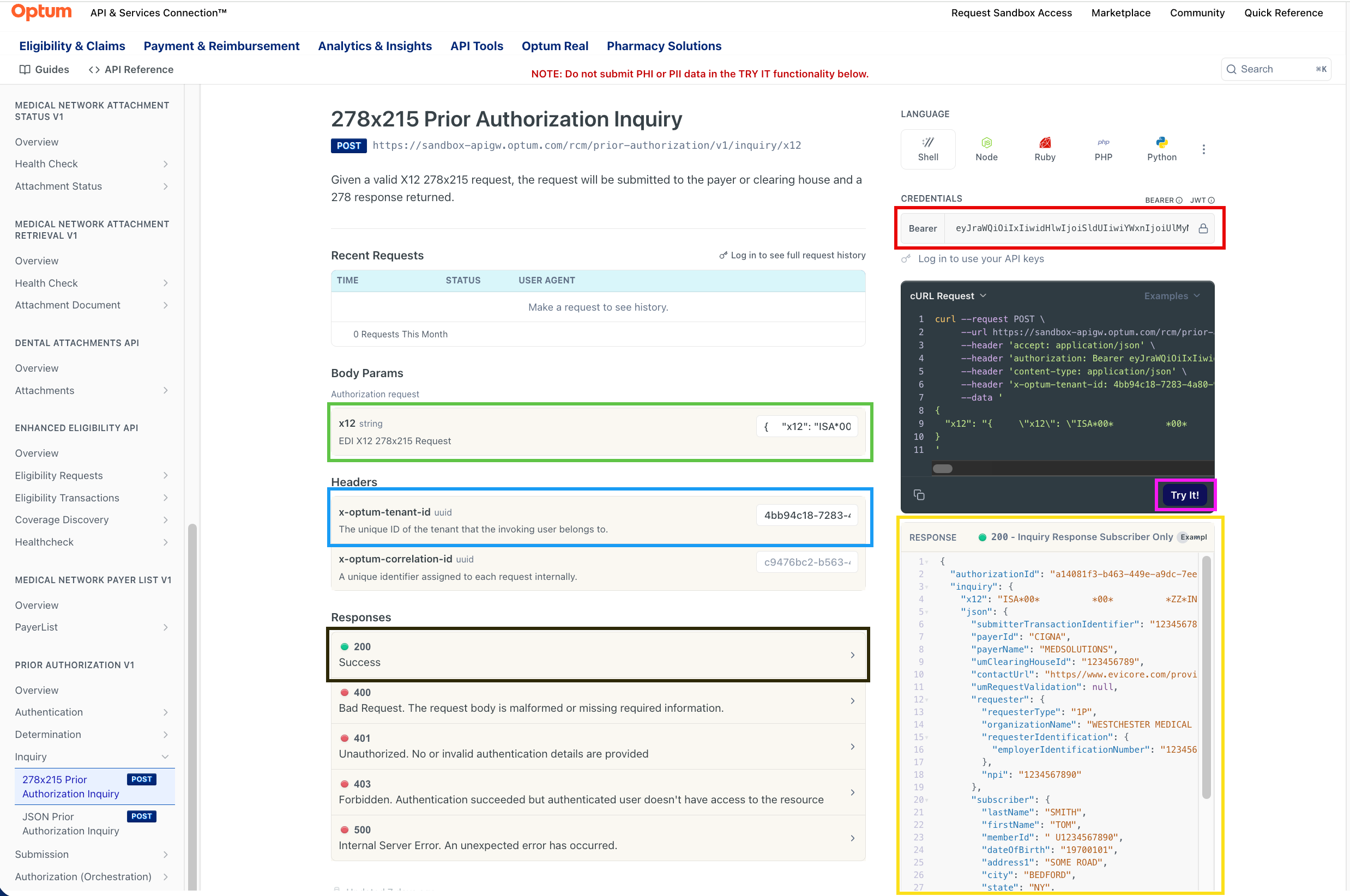
X12 Prior Authorization Example
The response for this endpoint shows within the RESPONSE box highlighted in yellow in the preceding figure.
Here is a canned response example for Member ID TST2.
{
	"authorizationId": "d536ef2c-be9b-44bc-b9d8-4875dbfe3498",
	"inquiry": {
		"x12": "ISA*00*          *00*          *ZZ*INQDEMO        *ZZ*943207296      *230810*1021*^*00501*916040697*0*P*:~GS*HI*INQDEMO*943207296*20230810*102137*3294199*X*005010X215~ST*278*0001*005010X215~BHT*0007*49*1402448037*20230810*102137*RD~HL*1**20*1~NM1*PR*2*INQDEMO*****PI*INQDEMO~PER*IC**UR*none~HL*2*1*21*1~NM1*1P*2*DEMO HOSPITAL*****XX*1234567890~REF*EI*123456789~HL*3*2*22*1~NM1*IL*1*DOE*JOE****MI*TST2~REF*6P*00000000~DMG*D8*19010101~HL*4*3*EV*0~UM*HS*I**21:B~HCR*A1*A062951774~REF*BB*A062951774~DTP*102*D8*20230802~DTP*036*D8*20230831~DTP*007*D8*20230801~NM1*DK*2*DEMO HOSPITAL*****XX*1234567890~NM1*71*2*DEMO HOSPITAL*****XX*1234567890~SE*22*0001~GE*1*3294199~IEA*1*916040697~",
		"json": {
			"submitterTransactionIdentifier": "1402448037",
			"payerId": "INQDEMO",
			"payerName": "INQDEMO",
			"umClearingHouseId": "943207296",
			"contactUrl": "none",
			"umRequestValidation": null,
			"requester": {
				"requesterType": "1P",
				"organizationName": "DEMO HOSPITAL",
				"requesterIdentification": {
					"employerIdentificationNumber": "123456789"
				},
				"npi": "1234567890"
			},
			"subscriber": {
				"lastName": "DOE",
				"firstName": "JOE",
				"memberId": "TST2",
				"dateOfBirth": "19010101",
				"supplementalIdentification": {
					"groupNumber": "00000000"
				}
			},
			"dependent": {
				"supplementalIdentification": {}
			},
			"patientEventDetail": {
				"requestCategoryCode": "HS",
				"certificationTypeCode": "I",
				"facilityTypeCode": "21",
				"facilityCodeQualifier": "B",
				"certificationActionCode": "A1",
				"reviewIdentificationNumber": "A062951774",
				"previousReviewAuthorizationNumber": "A062951774",
				"certificationIssueDate": "20230802",
				"certificationExpirationDate": "20230831",
				"certificationEffectiveDateBegin": "20230801",
				"patientEventProviderName": [
					{
						"entityIdentifierCode": "DK",
						"organizationName": "DEMO HOSPITAL",
						"identificationCodeQualifier": "XX",
						"identifier": "1234567890",
						"providerSupplementalInformation": {}
					},
					{
						"entityIdentifierCode": "71",
						"organizationName": "DEMO HOSPITAL",
						"identificationCodeQualifier": "XX",
						"identifier": "1234567890",
						"providerSupplementalInformation": {}
					}
				]
			}
		}
	}
}
For more canned response examples, see Inquiry Test Response.
JSON Prior Authorization
- Here is an
/submissionexample, click JSON Prior Authorization Submission endpoint. - Paste the Bearer token that you generated in the generate a Bearer token section, in the CREDENTIALS box highlighted in red in the following figure.
- Enter your JSON request body in the Body Params fields highlighted in green in the following figure.
- Enter the
tenantId: your tenant ID in the x-optum-tenant-id box highlighted in light blue in the following figure. - Click Try It! (highlighted in pink in the following figure) to run the request.
IMPORTANT
Please note that unlike the previous X12 example, the JSON request requires you to provide all the required field values. Please note that these required values are GREYED out, which are pre-populated example values and can be selected to view their respective canned response. To view the required fields, expand the + symbol highlighted in dark blue in the following figure (also shown in the preceding request example). For more information, please refer to the JSON-to-EDI Content section.
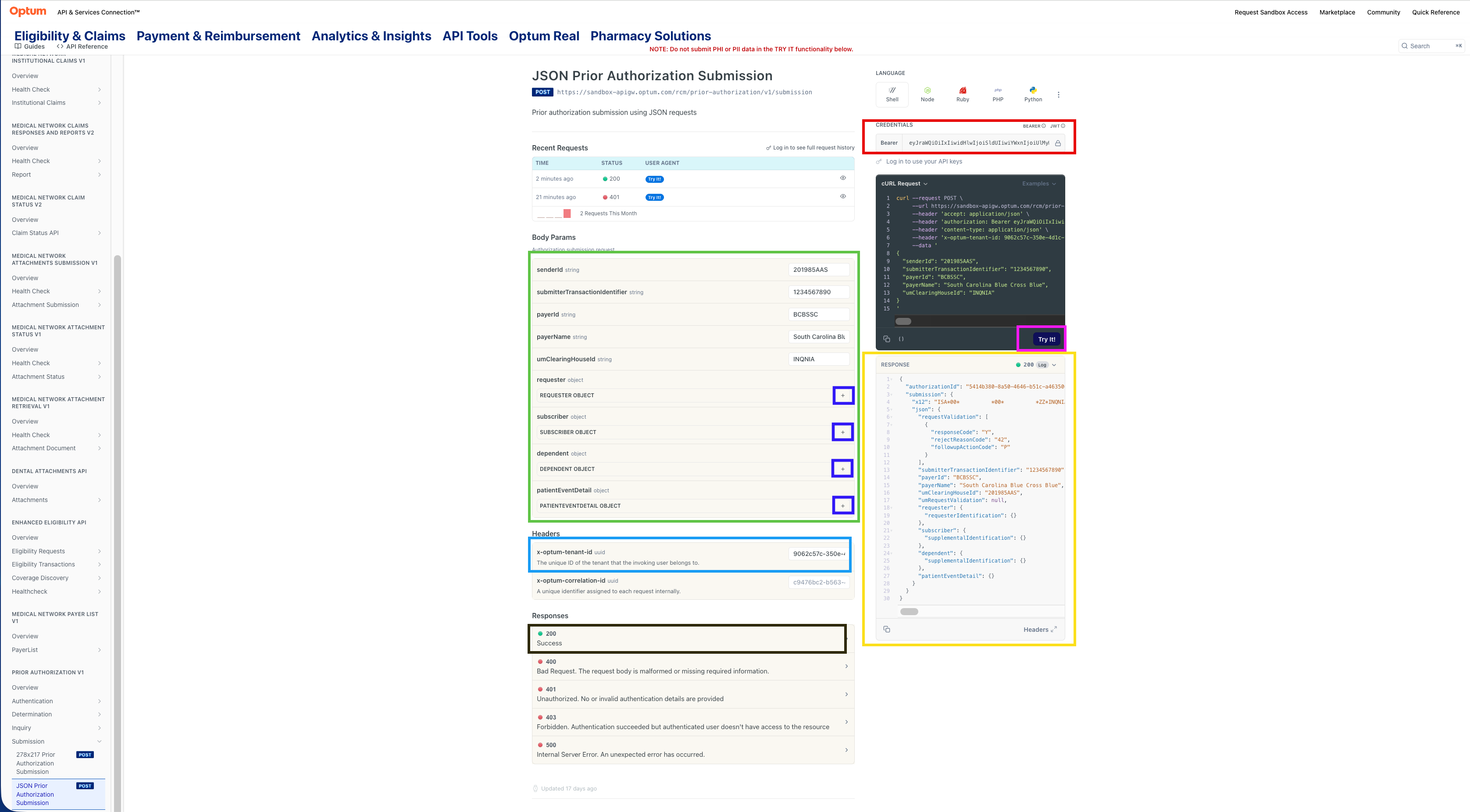
JSON Prior Authorization Example
The response for this endpoint shows within the RESPONSE box highlighted in yellow in the preceding figure.
Here is an example of the JSON request showing all the required fields.
{
  "senderId": "201985AAS",
  "submitterTransactionIdentifier": "165932",
  "payerId": "UHC",
  "payerName": "ABC PAYER",
  "umClearingHouseId": "278_217_01_A1",
  "requester": {
    "requesterType": "1P",
    "organizationName": "XYZ AMBULANCE SVC",
    "lastName": "XYZ AMBULANCE SVC"
  },
  "subscriber": {
    "lastName": "SMITH",
    "firstName": "JOE",
    "memberId": "12345689001",
    "dateOfBirth": "19580322",
    "genderCode": "M",
    "supplementalIdentification": {
      "patientAccountNumber": "6532214A76"
    }
  },
  "patientEventDetail": {
    "requestCategoryCode": "HS",
    "certificationTypeCode": "I",
    "serviceTypeCode": "56",
    "facilityTypeCode": "41",
    "facilityCodeQualifier": "B",
    "eventDateBegin": "20050510",
    "ambulanceCertificationConditionIndicator": "Y",
    "ambulanceCertificationConditionCode1": "09",
    "ambulanceTransport": {
      "transportCode": "X",
      "transportReasonCode": "D",
      "transportDistance": "27",
      "roundTripPurposeDescription": "TRIP FROM HOME TO OFFICE VISIT TO DIALYSIS TREATMENT AND BACK HOME"
    },
    "patientEventTransportInformation": [
      {
        "entityIdentifierCode": "PW",
        "transportLocationName": "HOME",
        "address1": "8652 Starwood Lane",
        "city": "SACRAMENTO",
        "state": "CA",
        "postalCode": "95826"
      },
      {
        "entityIdentifierCode": "ND",
        "transportLocationName": "DR. GARDNER OFFICE",
        "address1": "1921 FULTON AVENUE",
        "city": "SACRAMENTO",
        "state": "CA",
        "postalCode": "95624"
      },
      {
        "entityIdentifierCode": "R3",
        "transportLocationName": "XYZ DIALYSIS CENTER",
        "address1": "7622 MORSETOWN ROAD",
        "city": "SACRAMENTO",
        "state": "CA",
        "postalCode": "95826"
      },
      {
        "entityIdentifierCode": "FS",
        "transportLocationName": "HOME",
        "address1": "8652 STARWOOD LANE",
        "city": "SACRAMENTO",
        "state": "CA",
        "postalCode": "95826"
      }
    ],
    "serviceLevel": [
      {
        "professionalService": {
          "productOrServiceIDQualifier": "HC",
          "procedureCode": "A0428",
          "procedureModifier1": "DR",
          "unitOrBasisForMeasurementCode": "UN",
          "serviceUnitCount": "14"
        }
      }
    ]
  }
}
Here is a canned example response for the above example request.
{
	"authorizationId": "45ac89df-8469-4f9a-a6c6-a64732adc547",
	"submission": {
		"x12": "ISA*00*6666      *00*5555      *ZZ*6546564        *ZZ*6546564        *0623  *1301*^*00501*000000001*0*T*:~GS*HI*FL0738*PERSEPVS*20090601*040612*1*X*005010X217~ST*278*0001*005010X217~BHT*0007*11*165932*20055002*0815*18~HL*1**20*1~NM1*X3*2*ABC PAYER*****PI*1234560010~HL*2*1*21*1~NM1*1P*1*XYZ AMBULANCE SVC*****24*7759621873~HL*3*2*22*1~NM1*IL*1*SMITH*JOE****MI*12345689001~REF*EJ*6532214A76~DMG*D8*19580322*M~HL*4*3*EV*1~UM*HS*I*56*41:B~HCR*A1*2005010796321~DTP*AAH*D8*20050510~CR1***X**DH*27~NM1*PW*2*HOME~N3*8652 STARWOOD LANE~N4*SACRAMENTO*CA*95826~NM1*ND*2*DR. GARDNER OFFICE~N3*1921 FULTON AVENUE~N4*SACRAMENTO*CA*95624~NM1*R3*2*XYZ DIALYSIS CENTER~N3*7622 MORSETOWN ROAD~N4*SACRAMENTO*CA*95826~NM1*FS*2*HOME~N3*8652 STARWOOD LANE~N4*SACRAMENTO*CA*95826~HL*5*4*SS*0~SV1*HC:A0428:RX**UN*5~HL*6*4*SS*0~SV1*HC:A0428:PD**UN*8~HL*7*4*SS*0~SV1*HC:A0428:DR**UN*14~SE*34*0001~GE*1*1~IEA*1*000000001~",
		"json": {
			"submitterTransactionIdentifier": "165932",
			"payerId": "1234560010",
			"payerName": "ABC PAYER",
			"umClearingHouseId": "PERSEPVS",
			"umRequestValidation": null,
			"requester": {
				"requesterType": "1P",
				"lastName": "XYZ AMBULANCE SVC",
				"requesterIdentification": {},
				"employersId": "7759621873"
			},
			"subscriber": {
				"lastName": "SMITH",
				"firstName": "JOE",
				"memberId": "12345689001",
				"dateOfBirth": "19580322",
				"genderCode": "M",
				"supplementalIdentification": {
					"patientAccountNumber": "6532214A76"
				}
			},
			"dependent": {
				"supplementalIdentification": {}
			},
			"patientEventDetail": {
				"requestCategoryCode": "HS",
				"certificationTypeCode": "I",
				"serviceTypeCode": "56",
				"facilityTypeCode": "41",
				"facilityCodeQualifier": "B",
				"certificationActionCode": "A1",
				"reviewIdentificationNumber": "2005010796321",
				"eventDateBegin": "20050510",
				"ambulanceTransportCode": "X",
				"ambulanceUnitOrBasisForMeasurementCode": "DH",
				"ambulanceTransportDistance": "27",
				"patientEventAdditionalPatientInformationContactName": [
					{}
				],
				"patientEventTransportInformation": [
					{
						"entityIdentifierCode": "PW",
						"transportLocationName": "HOME",
						"address1": "8652 STARWOOD LANE",
						"city": "SACRAMENTO",
						"state": "CA",
						"postalCode": "95826"
					},
					{
						"entityIdentifierCode": "ND",
						"transportLocationName": "DR. GARDNER OFFICE",
						"address1": "1921 FULTON AVENUE",
						"city": "SACRAMENTO",
						"state": "CA",
						"postalCode": "95624"
					},
					{
						"entityIdentifierCode": "R3",
						"transportLocationName": "XYZ DIALYSIS CENTER",
						"address1": "7622 MORSETOWN ROAD",
						"city": "SACRAMENTO",
						"state": "CA",
						"postalCode": "95826"
					},
					{
						"entityIdentifierCode": "FS",
						"transportLocationName": "HOME",
						"address1": "8652 STARWOOD LANE",
						"city": "SACRAMENTO",
						"state": "CA",
						"postalCode": "95826"
					}
				],
				"serviceLevel": [
					{
						"professionalService": {
							"productOrServiceIDQualifier": "HC",
							"procedureCode": "A0428",
							"procedureModifier": "RX",
							"unitOrBasisForMeasurementCode": "UN",
							"serviceUnitCount": "5"
						},
						"institutionalService": {},
						"dentalService": {},
						"serviceDetailAdditionalServiceInformationContactName": [
							{}
						]
					},
					{
						"professionalService": {
							"productOrServiceIDQualifier": "HC",
							"procedureCode": "A0428",
							"procedureModifier": "PD",
							"unitOrBasisForMeasurementCode": "UN",
							"serviceUnitCount": "8"
						},
						"institutionalService": {},
						"dentalService": {},
						"serviceDetailAdditionalServiceInformationContactName": [
							{}
						]
					},
					{
						"professionalService": {
							"productOrServiceIDQualifier": "HC",
							"procedureCode": "A0428",
							"procedureModifier": "DR",
							"unitOrBasisForMeasurementCode": "UN",
							"serviceUnitCount": "14"
						},
						"institutionalService": {},
						"dentalService": {},
						"serviceDetailAdditionalServiceInformationContactName": [
							{}
						]
					}
				]
			}
		}
	}
}
NOTE
For different
submissioncanned response examples, theUMClearingHouseIDneeds to be modified based on the values provided in Submission Test Responses.
For moreinquirycanned response examples, see Inquiry Test Response.
IMPORTANT
The Prior Auth APIs are accessible in both the Production and Sandbox environments until our team removes the customer’s ID at the end of the contract period.
HTTP response status
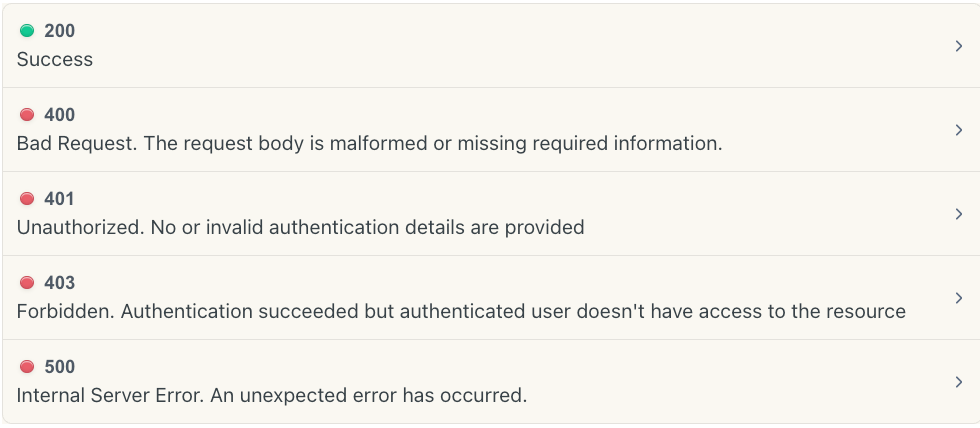
HTTP Response Status
Updated about 1 month ago