
This page outlines the process for granting additional users within a company access to Optum Real APIs, existing API subscriptions and credentials, and supporting tools available through the AI Marketplace Starter Guide.
Steps for Multi-User Setup
Step 1: Account Administrator Submits Request
The client account administrator or purchaser , or party acting on behalf, submits a request to AI Marketplace Support to add secondary users to the organization's AI Marketplace account.
Required Information
The request must include the following company information:
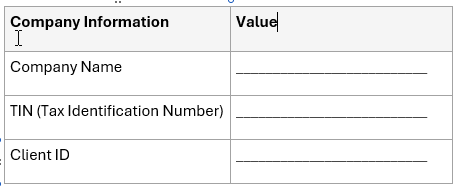
The request must also include the details of all users requiring access:
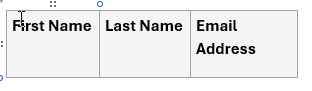
Submission Method
Send the completed information to: AI Marketplace Support: [email protected]
Expected turnaround time: 24-48 hours
Step 2: Optum AI Marketplace Processing
Once received the AI Market place with process your request. Expected turnaround time is 24-48 hours.
Step 3: Invitation Emails Sent to Secondary Users
After the user accounts have been associated with the company record, invitation emails are sent to each secondary user listed in the request.
The invitation email includes:
• A secure registration link
• Instructions for creating an AI Marketplace account
• Information regarding company association
Step 4: Secondary User Creates AI Marketplace Account
Each invited user must:
1. Open the invitation email.
2. Select the registration link.
3. Complete the AI Marketplace account registration process.
4. Configure any required authentication settings.
5. Sign in to AI Marketplace.
Expected Outcome
The user successfully creates and signs in to their AI Marketplace account.
Step 5: Access Verification
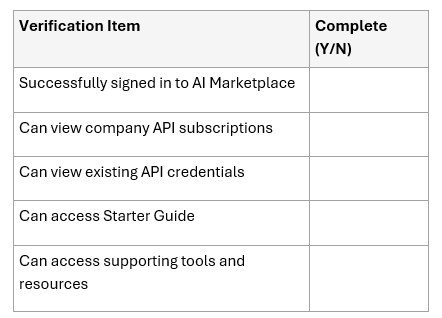
After signing in, the secondary user should verify access to the company's resources.
The user should be able to:
View Existing API Assets
• Existing Optum Real API subscriptions
• API credentials associated with the company
• Product entitlements assigned to the organization
Access Supporting Tools
From the Starter Guide, the user should be able to access supporting tools and resources, including any tools available to the organization's subscribed products.
Process Checklist
Escalation Process
If a user cannot access subscriptions, credentials, or supporting tools after completing registration:
1. Confirm the user signed in using the email address included in the access request.
2. Verify that the invitation email was accepted and registration was completed.
3. Contact AI Marketplace Support for assistance: [email protected]