
The Optum Real Interoperability API Technical Reference Guide will contain all of the essential information the user will need to integrate with an API and serve as a ready reference source should you encounter a problem. User can also view and download API data dictionary. Note: This guide is intended to be referenced by information technology personnel.
API Data Dictionary
The attached spreadsheet serves as a comprehensive data dictionary for the API. It includes detailed documentation of the following components:
Request Elements-Describes the input parameters required for the API or data query.
Includes field names, data types, required/optional status, and descriptions.
Response Elements-Lists the fields returned in the response payload.
Includes field names, data types, possible values, and descriptions.
Query Samples-Provides graphql example queries for each operation to demonstrate how to interact with the API.
Useful for developers and testers to understand expected formats and usage patterns.
Error Codes-Documents the possible error codes returned.Includes code values, error messages, and explanations to aid in troubleshooting.
Overview
The Provider Access API provides an easy way to give in network healthcare providers secure, near real time access to the patient information they need to deliver high quality care. Using modern FHIR standards, the API allows payers to share clinical data, claims, encounters, and prior authorization details with providers who have an active treatment relationship with a patient—supporting more coordinated, informed, and efficient care delivery.
Built to meet CMS’s Interoperability and Prior Authorization requirements (CMS-0057-F), the Provider Access API streamlines how providers request and retrieve patient data while ensuring strict privacy protections, patient opt out support, and verification of treatment relationships. By replacing manual data sharing with automated, standards based exchange, the API reduces administrative burden for providers and payers and helps ensure that accurate health information is available when and where it’s needed.
HL7 FHIR Implementation Guide supported:
The HL7 FHIR DaVinci implementation guide supported for Provider Access API is listed as follows:
| API | Implementation Guide + Version | Description |
|---|---|---|
| Provider Access API Version 2 | Provider Access API(v2) - Da Vinci Payer Data Exchange v2.2.0 (Build Version – Trial Use) | Provider Access API Version 2 Provider Access API(v2) - Da Vinci Payer Data Exchange v2.2.0 (Build Version – Trial Use) The Provider Access API (v2) is an evolution of the Da Vinci Payer Data Exchange (PDex) framework that enables payers to share patient data securely and efficiently with providers who have an active treatment relationship with the patient. Version 2 introduces significant improvements to workflow efficiency, scalability, and alignment with CMS interoperability requirements and prior authorization rules. |
| DaVinci Payer Data Exchange (PDEX) | Da Vinci Payer Data Exchange 2.1.0 - STU 2.1 | Da Vinci Payer Data Exchange (PDex) is a healthcare standard that lets health insurance plans securely share a member’s health information with patients, providers, and other health plans using modern APIs, making it easier for the right people to access the member’s medical history when needed. |
| HL7 FHIR Bulk Data Access (Flat FHIR) | Bulk Data Access IG 2.0.0 | HL7 FHIR Bulk Data Access (Flat FHIR) is a standard that allows healthcare organizations to securely export large amounts of patient data at once, instead of retrieving one patient record at a time through an API. |
Key Capabilities
This RESTful API supports a wide range of claims-related functions, including:
Provider Member Match API
- Use this operation to establish treatment relationships between a provider and members. The API validates the provider’s access and creates member groups based on provider treatment attestation. The matched member groups are required to initiate bulk data export requests in later steps.
Initiate Bulk Data export API
- Starts a bulk data export for matched treating to the authenticated provider. This operation follows the Da Vinci Provider Access API V2 Implementation Guide. Providers can request access to the following data for matched members:
- Clinical data
- Prior authorization data
- Non financial claims and encounter data
- The export runs asynchronously and returns a location that can be used to check export status.
Check Bulk Export Status API
- Use this endpoint to check the status of a previously initiated bulk export request. While processing, the response indicates the current export state. When the export is complete, the response includes download URLs for the exported data files.
Download Bulk Export File API
- Downloads an individual file from a completed bulk export operation. Each file contains FHIR resources formatted as newline delimited JSON (NDJSON). Repeat this step for each file link returned when the export is complete.
Test API
- Use token generated using client ID and secret key for sandbox or production.
- Download API specs from overview page - every API overview section provides links to download the file in a JSON format, which generates our documentation for developers to use.
- Hit API endpoint through the following options:
-Use Try It for each API to request complete API response for
Sandbox API endpoint only.
OR
-Use Postman to request complete API response or customize response for Sandbox and/or
Production API endpoint.
NOTE: Do not submit PHI or PII data in the Try It page.
Sandbox use for live and mock data testing
- The customer will retain the ability to query mock responses from a sandbox environment by using an optional request header called “environment”. By placing the value “sandbox" in the optional header, the request return mock responses.
NOTE: Do not submit PHI or PII data in the TRY IT page.
End-to-End API invoking Workflow Summary
Step1: Provider subscribes to Provider Access API via AI marketplace
Provider receives client ID and secret. This client ID and secret must be used to invoke four endpoints Provider access API bundle includes.
Step1a: Token generation and base URL info**
- For token generation Sandbox and Production endpoints please refer to step 3 of API Setup page.
- Base URLs listed in the below table should be prepended to the each of APIs endpoint.
| Instance | Base URL | Notes |
|---|---|---|
| Optum Real Provider Access Sandbox | https://sandbox-apigw.optum.com/oihub/fhirprovideraccess/v1/ | Use sandbox credentials generated bearer token to invoke API through by appending API endpoint with the base URL to invoke API |
| Optum Real Provider Access production | https://apigw.optum.com/oihub/fhirprovideraccess/v1/ | Use production credentials generated bearer token to invoke API through by appending API endpoint with the base URL to invoke API |
Step2: Using POST operation call Provider Member Match API
Provider Member Match API Endpoint
| Instance | API Endpoint+ path parameters | Notes |
|---|---|---|
| Optum Real Provider Access/ Provider Member Match API sandbox | BaseURL/R4/{payerId}/{lob}/Group/$provider-member-match NOTE: - For UHC pass supported payerID from this list and LOB as LOB. - For non UHC pass supported payerID and LOB value combination from the list pending | Use sandbox credentials generated bearer token to invoke API through by appending API endpoint with the base URL to invoke API |
| Optum Real Provider Access/ Provider Member Match API production | BaseURL /R4/{payerId}/{lob}/Group/$provider-member-match NOTE: - For UHC pass supported payerID from this list and LOB as LOB. - For non UHC pass supported payerID and LOB value combination from the list pending | Use production credentials generated bearer token to invoke API through by appending API endpoint with the base URL to invoke API |
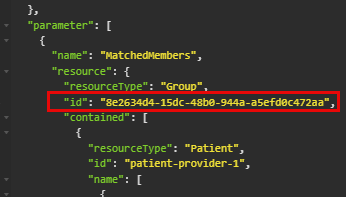
Copy group ID from API output to pass as path Param to Bulk data export API
Step3: Using GET or POST Operation call Initiate Bulk Data Export API
Provider passes the group ID as a path parameter. Response includes the Content-Location header.
Initiate Bulk Data Export API Endpoint
| Instance | API Endpoint+ path parameters | Notes |
|---|---|---|
| Optum Real Provider Access/Initiate Bulk Data Export API sandbox | BaseURL/R4/{payerId}/{lob}/Group/{id}/$davinci-data-export NOTE: - id - copy this value from the output of Bulk Member Match API - Payer ID and LOB - For UHC pass supported payerID from this list and LOB as LOB. - For non UHC pass supported payerID and LOB value combination from the list pending | Use sandbox credentials generated bearer token to invoke API through by appending API endpoint with the base URL to invoke API |
| Optum Real Provider Access/Initiate Bulk Data Export API production | BaseURL/R4/{payerId}/{lob}/Group/{id}/$davinci-data-export NOTE: - id- copy this value from the output of Bulk Member Match API - Payer ID and LOB - For UHC pass supported payerID from this list and LOB as LOB. - For non UHC pass supported payerID and LOB value combination from the list pending | Use production credentials generated bearer token to invoke API through by appending API endpoint with the base URL to invoke APIL |
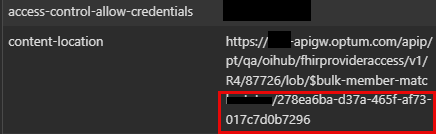
Copy "Content location" value highlighted above from Bulk Data Export APIresponse header to pass as input path param to Check Bulk Export Status API
Step4: Using GET Operation call Check Bulk Export Status API
Provider passes the Content-Location value to check job completion. Successful response returns file name / URL.
Check Bulk Export Status API Endpoint
| Instance | API Endpoint+ path parameters | Notes |
|---|---|---|
| Optum Real Provider Access/Check Bulk Export Status API sandbox | BaseURL /R4/{payerId}/{lob}/bulkrequest/polling-status/{content-location} NOTE:- {content-location}- copy this alpha numeric value from the header output of Bulk Data Request API - Payer ID and LOB - For UHC pass supported payerID from this list and LOB as LOB. - For non UHC pass supported payerID and LOB value combination from the list pending | Use sandbox credentials generated bearer token to invoke API through by appending API endpoint with the base URL to invoke API |
| Optum Real Provider Access/Check Bulk Export Status API production | BaseURL /R4/{payerId}/{lob}/bulkrequest/polling-status/{content-location} NOTE:- {content-location} - copy this alpha numeric value from the header output of Bulk Data Request API - Payer ID and LOB - For UHC pass supported payerID from this list and LOB as LOB. - For non UHC pass supported payerID and LOB value combination from the list pending | Use production credentials generated bearer token to invoke API through by appending API endpoint with the base URL to invoke API |
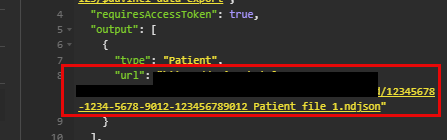
Copy "NDJSON file name" value highlighted above from Check Bulk Export Status APIresponse to pass as input path param to Download Bulk Export File API
Step5: Using GET Operation call Download Bulk Export File API
Provider passes the file name as a path parameter to download the file.
Each resource NDJSON file must be downlaoded individually.
Download Bulk Export File API Endpoint
| Instance | API Endpoint+ path parameters | Notes |
|---|---|---|
| Optum Real Provider Access/ Download Bulk Export File API sandbox | {BaseURL}/R4/{payerId}/{lob}/download/{fileName} NOTE:- {file name} - copy "NDJSON file name" value from Member Job Status APIresponse to pass as input path param. - Payer ID and LOB - For UHC pass supported payerID from this list and LOB as LOB. - For non UHC pass supported payerID and LOB value combination from the list pending | Use sandbox credentials generated bearer token to invoke API through by appending API endpoint with the base URL to invoke API. |
| Optum Real Provider Access/ Download Bulk Export File API production | {BaseURL}/R4/{payerId}/{lob}/download/{fileName} NOTE:- {file name}- copy "NDJSON file name" value from Member Job Status APIresponse to pass as input path param. - Payer ID and LOB - For UHC pass supported payerID from this list and LOB as LOB. - For non UHC pass supported payerID and LOB value combination from the list pending | Use production credentials generated bearer token to invoke API through by appending API endpoint with the base URL to invoke API |
Notes:
DO NOT perform load testing or production data testing in the sandbox environment. Please use the sandbox ONLY to view sample API responses to HTTP requests using our predefined values and to familiarize yourself with our APIs.
To perform load testing and production data testing, we recommend using our APIs in the production environment.
API health check
The health check endpoint checks the operating status of our API. It is a ping for the API entry point to ensure the entry points are accessible. This is the first thing you can do if something goes wrong.
- To run the health check of an Optum Real API - the Real Pre Service Eligibility API, go to
Healthcheck If the API engine is working correctly and if the entry points are accessible, the API operating status response shows "OK."
NOTE If you receive a response other than 200 OK, the health check failed.
Please submit a service ticket with Optum.