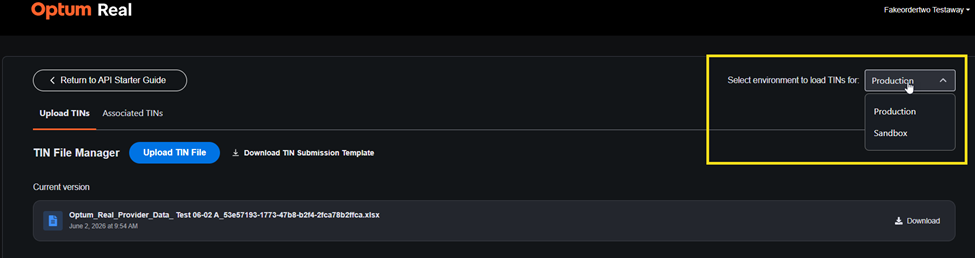
The purpose of the Optum Real File Manager page is to provide instructions for uploading files that contain Tax Identification Number (TIN) and/or National Provider Identification (NPI) lists. These uploads are needed to associate lists with Optum Real API accounts so that successful responses can be generated.
Overview
As an Optum Real API customer, your organization can access data that is directly sourced from multiple payer organizations. Each payer may enforce unique security protocols before transmitting responses to you. One of the requirements for full functionality of the APIs is storage of a billing tax ID (TIN) listing for each Optum Real account. The list is unique for each Optum Real account and should consist of the tax ID numbers for any entity that will submit transactions in association with the master account holder. The list is stored in reference tables and used as a point of validation as API requests are received. Any transactions submitted for TINs that are not captured in the association tables will receive an error response.
Using the tool- First Time Upload
The Optum Real TIN Association tool is available to help with keeping your associated TIN list updated. This is a self-service file upload tool that collects your TIN list and transmits it to the appropriate file location for processing. The tool consists of an upload wizard and a separate tab that displays all successfully loaded TINs so that users can have a clear understanding of status and can set appropriate expectations for API responses to transactions from specific TINs.
To get started with the TIN Association process:
-
Access the Real File Manager tool from the Starter Guide of any existing Optum Real API order or via direct URL (requires OHID login): https://prod-real.payerportal.optum.com/payer-portal/tinfileupload
i. You can access the Starter Guide from the same place where the Secret Keeper can locate your group’s API credentials.
ii. Navigate to Optum AI Marketplace
iii. Click Cart / Sign In
iv. Once signed in, ensure you see the page below or click the Cart again to be directed.
v. Select Starter Guide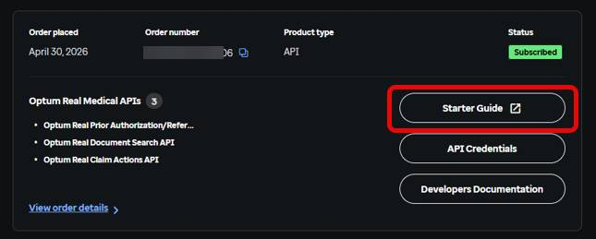
vi. A link to the Optum Real File Manager tool is located at step 2 of the Starter Guide.

-
Download and complete the submission template
-
Save a copy of the completed template
Note: TINs can be submitted alone but NPIs must be submitted with the associated TIN. If an NPI is submitted without a TIN on the same row of the spreadsheet, it will not be accepted. However, a TIN submitted without an NPI can be accepted. It is expected that the same TIN may be repeated in the list if it aligns to multiple NPIs.
Required Fields: Provider Name, Billing TIN
Conditional Fields: Billing NPI (Not required for UHC access, required for future capabilities)
-
Use the file wizard to upload your file
-
Confirm status and timestamp at the time of upload
-
Check the Associated TINs tab to confirm which TINs are successfully loaded.
Successful/Failed Associations
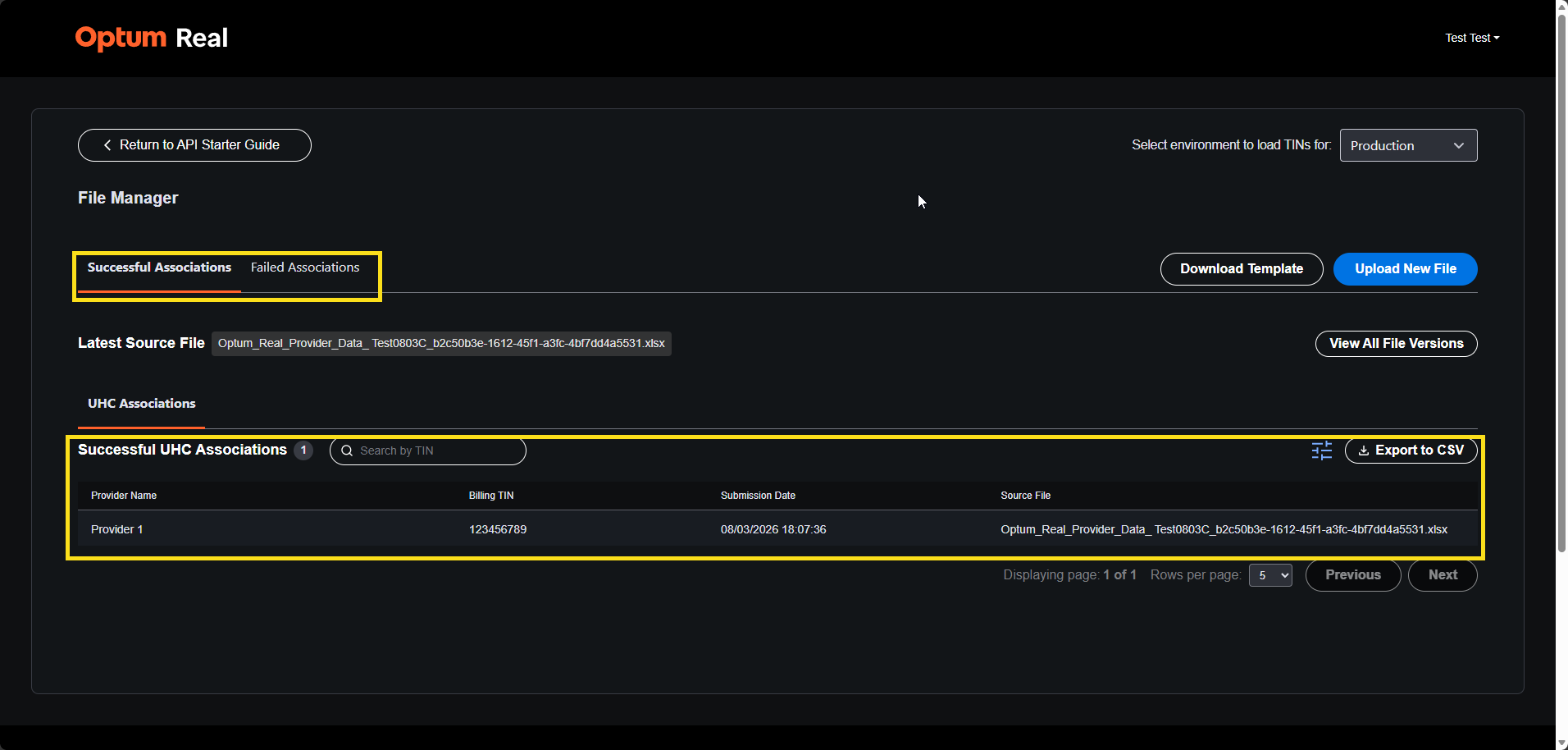
Upon completing a file upload, the tool will populate the data on one of two tabs:
- Successful Associations – Indicates provider records that passed payer validation and can be used to submit successful API transactions. Important Note: Users should not submit transactions immediately after records populate on this tab. 403 errors can still occur up to 8 hours after lists are processed.
- Failed Associations- Indicates provider records that did not pass payer validation and should not be used to submit API transactions.
File Updates
Most customers experience organization changes periodically which impact their TIN listing. As these changes occur, it is important that you keep the TIN file updated accordingly. The same upload process completed for the initial upload applies for file updates as well. Users can use the same template to either submit a change record only or a complete replacement file.
Sandbox/Production Environment
TIN associations are processed separately for Optum Real sandbox and production environments. Please use the Environment dropdown menu within the tool to toggle to the appropriate environment for the file that you are uploading. Typically, the sandbox list is a small subset of the production list that is used for testing in a lower environment during the initial integration period.